Timeline Mixer supports adding and removing TimelineAssets at runtime, allowing timelines to be dynamically loaded, disconnected, or destroyed as needed.
This enables workflows such as conditional cutscenes, dynamic animation systems, or memory-conscious runtime setups.
Adding Timeline Assets
To add a timeline at runtime, call AddTimeline and provide the TimelineAsset to load:
This registers the timeline with the Timeline Mixer and builds its playable graph.
Track Bindings
If useDirectorBindings is set to true, the Playable Director will be searched for matching track bindings and they will be applied automatically. All tracks with valid bindings will complete their graph construction.
If useDirectorBindings is false, no bindings are applied automatically:
- Tracks that do not require bindings will still build normally.
- Tracks that do require bindings will remain unconnected unless:
- the track processor provides a fallback or default binding, or
- the track is explicitly rebound at runtime.
To bind or rebind tracks manually, use RebindTrack:
- Note
- To reconnect tracks that don't support bindings, use null as the bound object timelineMixer.RebindTrack("timelineName", "trackName", null);
If a binding is null, you may still need to rebind the track manually or assign the binding in the editor using the edit button next to the timeline field on the Timeline Mixer Component.
Disconnecting Tracks
To completely disconnect a track from the playable graph use DisconnectTrack
A disconnected track remains part of the timeline but is no longer connected to its mixer or output on the playable graph.
- Disconnected tracks are effectively muted at runtime
- The timeline remains loaded and can be rebound later without rebuilding the graph
If all tracks on a timeline are disconnected, the timeline will remain loaded but inactive. The Timeline Mixer Window will display a warning indicating that the timeline has no active bindings.
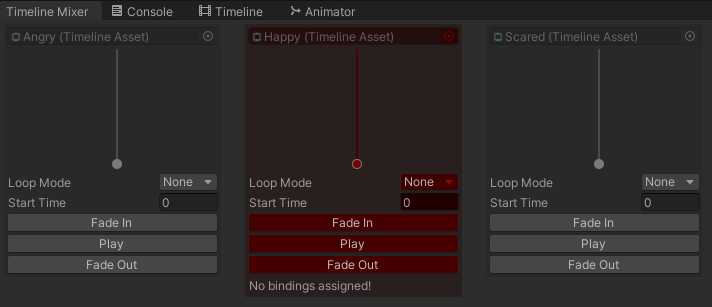
- Important
- Muting a track in the Timeline editor is not the same as disconnecting it.
Muted tracks are not built by Timeline at runtime, and Timeline Mixer will not detect or manage them.
Removing Timeline Assets at Runtime
To completely remove a timeline from the component, use RemoveTimeline
This will:
- stop the timeline
- disconnect and destroy its playable subgraph
- remove all internal data associated with the timeline
- remove the TimelineAsset from the Timeline Mixer Component
Once removed, the timeline must be added again using AddTimeline if it is needed later.